Overview
This section will discuss how to add BESS in the database.
BESS Database
After setting the input parameters for the Storages, Sites and Units CSV file. We'll have to run a batch file to initialize the BESS units within the database. This process copies the existing database and adds in the new storage parameters.
Step 1: Create the Batch File
- Open Notepad.
- Copy and paste the command lines below:
REM 1. Create a copy of the latest database to preserve the original
copy /y .\\Databases\\INSERT_UPDATED_DATABASE_FILENAME.mdb .\\Databases\\DATABASE_WITH_BESS_FILENAME.mdb

REM 2. Set the environment path for iEnergy
set "PATH=C:\Program Files (x86)\iEnergy"

REM 3. Initialize iPool with the new database
iPool.exe -nowin -ipdb "DATABASE_WITH_BESS_FILENAME.mdb"

REM 4. Input BESS units, sites, and storage parameters into the database
iPool.exe -o BASE -UnitsFile Units.csv -SitesFile Sites.csv -StorsFile Storages.csv -updatedb -s -x
Action Required
Before saving, you must replace the placeholders in the script:
INSERT_UPDATED_DATABASE_FILENAME.mdb→ Use your most recent source database name.DATABASE_WITH_BESS_FILENAME.mdb→ Define a new name for your BESS-enabled database.
Step 2: Save and Execute
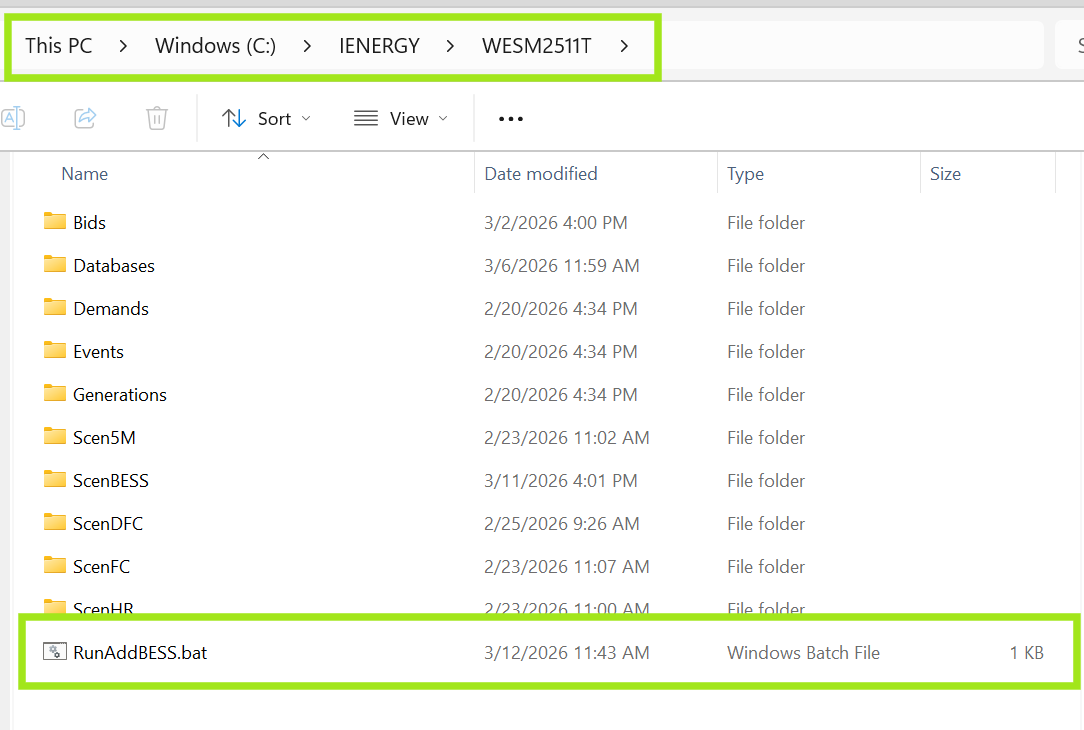
- Save the file as RunAddBESS.bat.
- Ensure it is saved in the directory:
C:\IENERGY\WESMXXX. - Locate the file in your file explorer and double-click it to run. A command window will appear and close automatically once the update is complete.
Step 3: Verify Database Integration
To ensure the BESS units (Supply and Demand _L units) were successfully added:
- Navigate to
C:\IENERGY\WESMXXX\Databases. - Open your newly created database file (
DATABASE_WITH_BESS_FILENAME.mdb). - Check the Storages, Sites, and Units tables to confirm the new entries match your CSV input files.
Next Step
Once the units are confirmed in the database, you can proceed to iBidEzy to create the corresponding bid files, or use optmized bids. Click here for more information.