Get to Know Apollo
This section covers the core navigation and setup features you need to know in Apollo, including:
User Interface (for update)
Apollo Screens
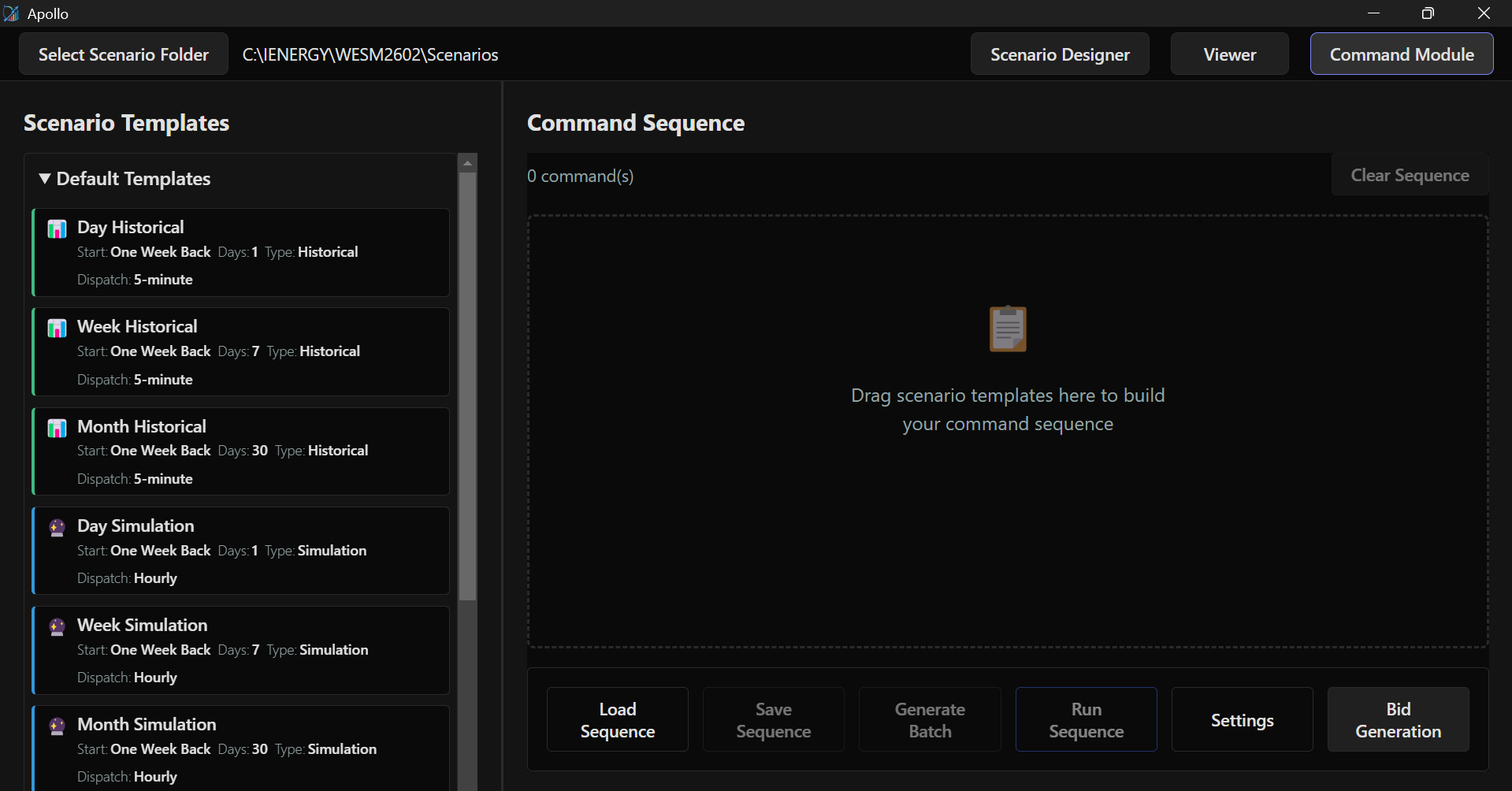 Scenario Templates AreaCommand Sequence Area
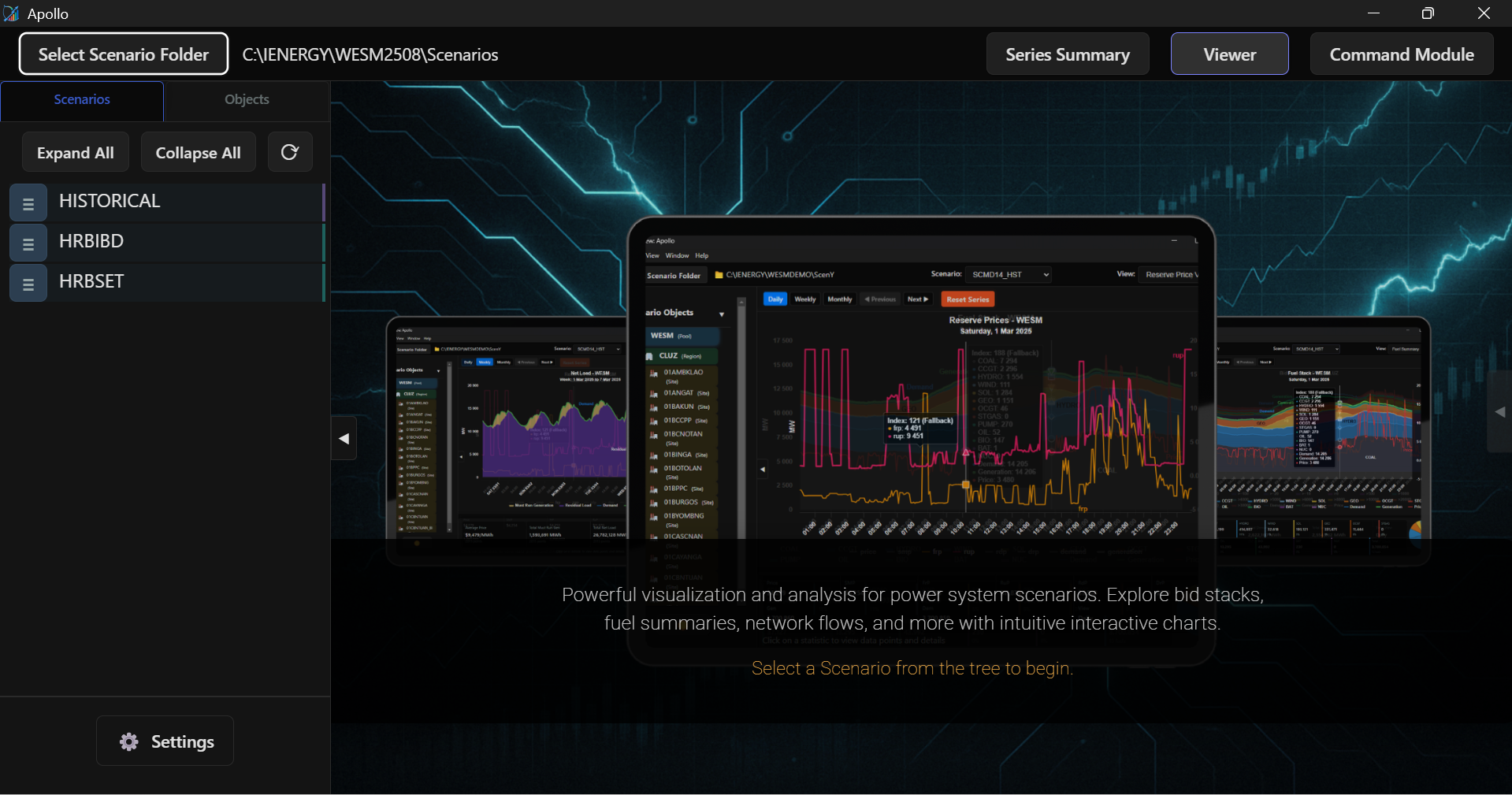 Select Scenario Folder ButtonScenario Directory PathToolbarScenario Tree View
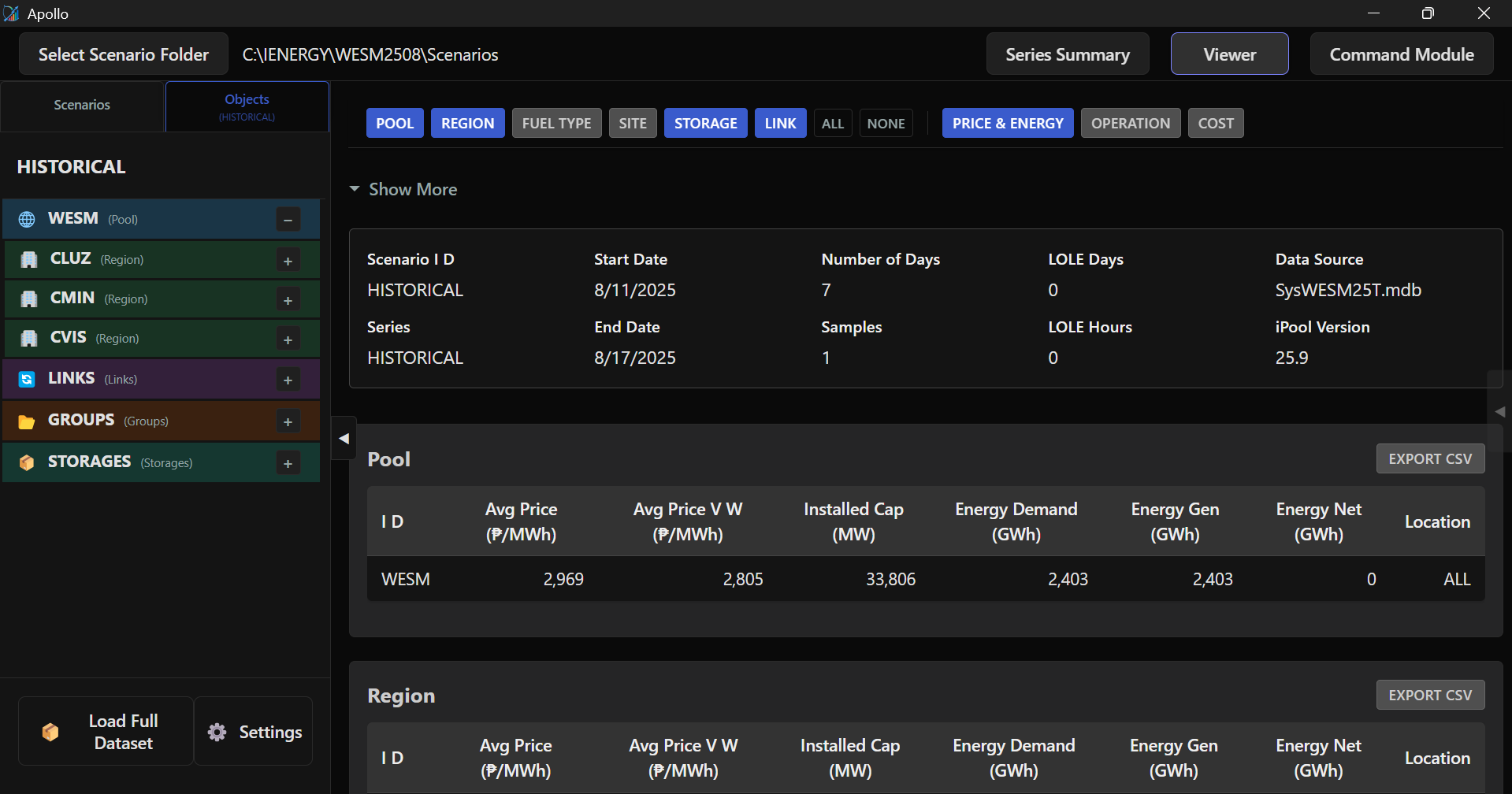 Market ParameterScenario Summary ReportObject Tree ViewScenario Name
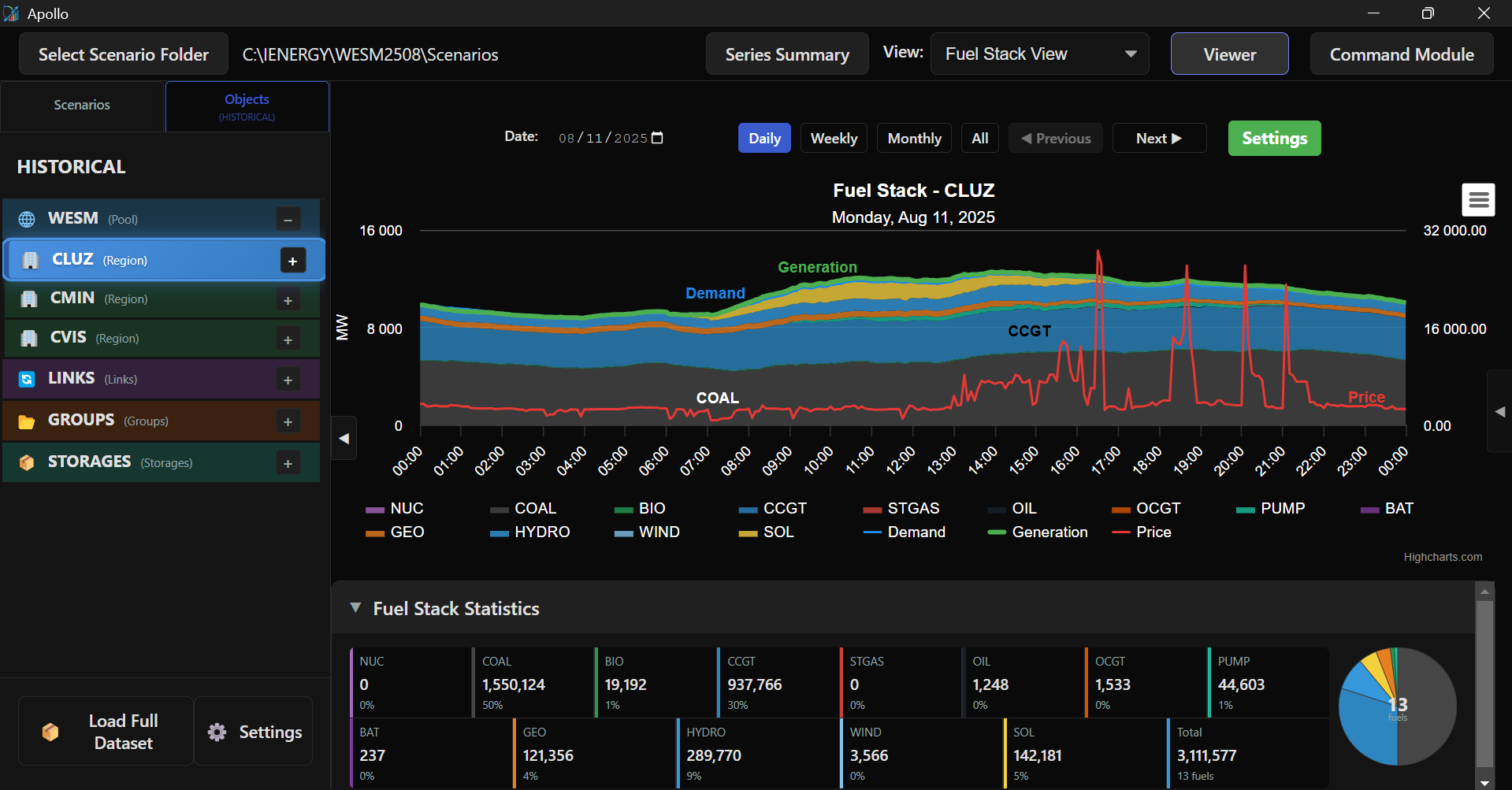 Viewer SelectorDate SelectorDashboard AreaStatistics Bar
- Scenario Templates AreaCommand Sequence Area
- Select Scenario Folder ButtonScenario Directory PathToolbarScenario Tree View
Selecting the Scenario Folder
Users can set the scenario folder based on their current working directory. Click Select Scenario Folder in the upper-left corner of Apollo, navigate to C:\IENERGY, open your desired working folder, select the Scenarios folder, and then click Select Folder at the bottom right.
note
Scenarios can be saved in a different folder, aside from the default Scenarios folder, and can still be loaded in Apollo for visualization.
Loading Options
Apollo offers four distinct loading modes to balance data depth with performance. Right-click any scenario to select one of the following options:
| Loading Option | Data Depth (Scope) | Key Features | Best For... |
|---|---|---|---|
| Basic Scenario | Pool, Region, & Site | Includes Charts | Quick site-level overviews |
| Comprehensive | Full Dataset (to Unit level) | All Data + Charts | In-depth market analysis |
| Summary | Reports Only (to Unit level) | No Charts | Rapid report generation |
| Historical DB | System Error Logs | List of Error Types | Troubleshooting & post-market analysis |
note
Load Historical Database is only available for Historical Load.