Overview
This section outlines the required inputs and step-by-step procedure for running a backcast and calibrating the Reserve Calibration Factor in Suite.
- Required Inputs
- Step-by-step procedure
- Exercise
Backcasting and Calibration
Backcasting involves modeling historical load data to improve the accuracy of future forecasts. This section outlines the components required to successfully run a backcast and its calibration.
Before proceeding, ensure that the historical load has been completed. The only remaining Historical Database Errors should be Out-of-Merit No Bid, Out-of-Merit Outage, and/or Line Outage.
Prerequisites
- Historical Demand —
Dem_XXX.csv— automatically generated when the historical load is run. Saved in the Demands folder directory. The filename corresponds to the scenario name used in the historical load. - Historical Generation —
Gen_XXX.csv— also generated by the Historical Load. Saved in the Generations folder directory. - Historical Bids —
OM_XXX.bid— the automatically generated bids for out-of-merit units with missing bids. For simulations using a historical time frame, auto-bid loading can be used with the parameters-abf ALLand-ab 1. - Historical Events —
Ev_XXX.csv— the list of automatically captured events (particularly outages) from the Historical Load. Generated in the Events folder of the working directory.
Backcast and calibration can also be performed at a 1-hour interval, with minor changes to the
demand and generation files. The required files should have filenames in the format
DemHR_XXX.csv and GenHr_XXX.csv.
Step-by-Step Guide
- Phase 1: Create a Backcast
- Phase 2: Calibrate Reserve Factor
Create a Backcast Using the Command Module
- Open Apollo, then go to Command Module and click + Add command.
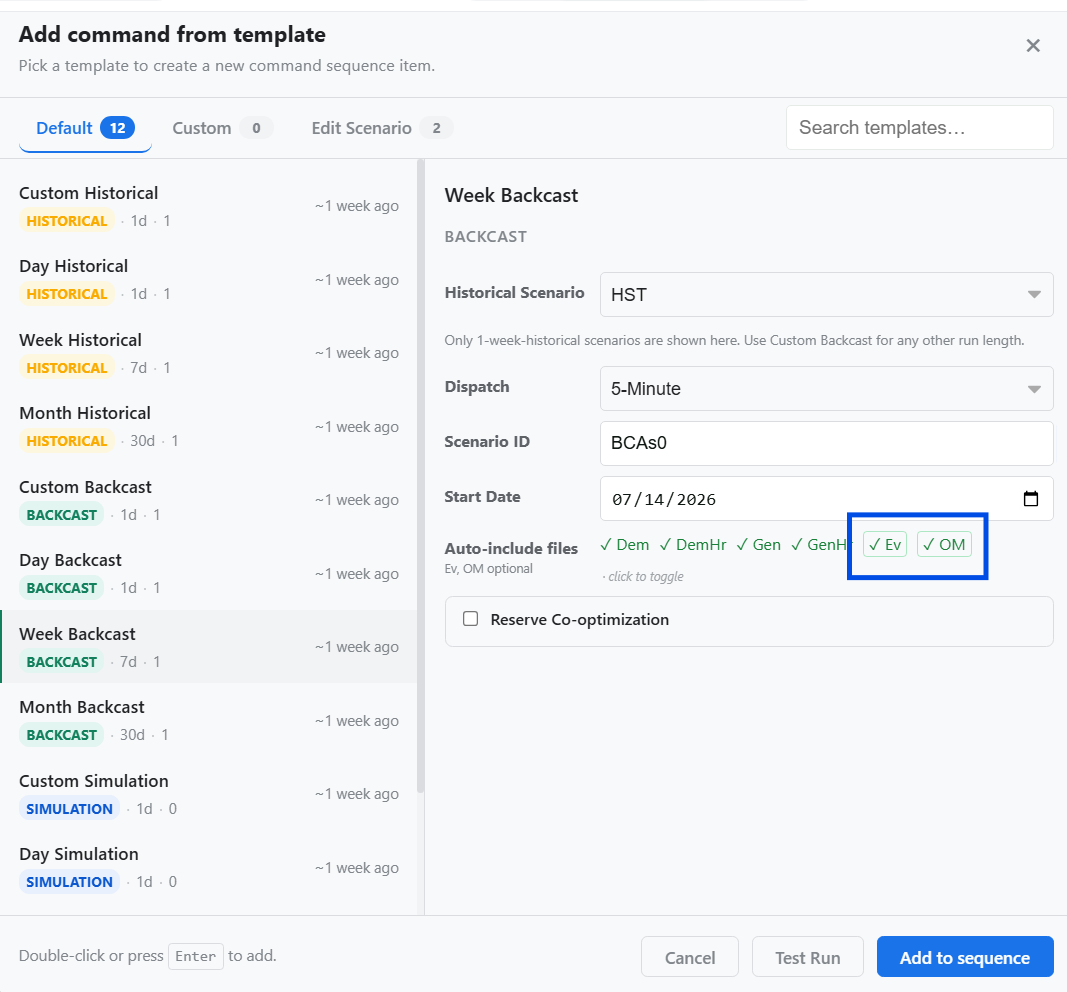
- Select an appropriate backcast template, then fill in the required details based on the historical load you want to model.
- By default, the captured events and the generated bids for out-of-merit no-bid units are included. These can be excluded by clicking or deselecting the corresponding options.
- After completing the setup, click Add to sequence. This setup creates a backcast using a spin parameter of 0.
If multiple scenarios are present, the top-most scenario in the sequence list will be executed first. When new scenarios are added to Apollo, click the Restart button to ensure proper initialization before running.
Exercise
Give it a try and do this exercise:
Step 1 of 3
Verify Prerequisites