Custom Bids
Overview
Custom bids let you manually configure supply and demand bids for individual units. For viewing and editing options, see the Viewer and Editor in the Bid Manager reference tab (see also the bid type overview on the Bid Manager interface page).
What It Is
Custom bids are manually configured supply and/or demand bids applied at the individual unit level. A supply bid causes the unit to discharge when the market price exceeds the bid price; a demand bid (for Energy Storage Systems) causes the unit to charge when the market price falls below the bid price. Custom bids are authored in a separate application within the Bid Manager tab.
When to Use
Use Custom Bids when you need unit-specific bid strategies that differ from historical or typical bid profiles — for example, ESS/BESS charging and discharging strategies, or overrides for individual units with non-standard market behaviour.
Step-by-Step Guide
- 1. Market Rules
- 2. Setup & Selection
- 3. Bidding Logic
- 4. Bid Bands
- 5. Execution & Saving
Market Rules
- Supply Bid: The unit discharges if the market price is above the bid price.
- Demand Bid (for Energy Storage System): The unit charges if the market price is below the bid price.
Open iPool Suite
- Launch iPool Suite.
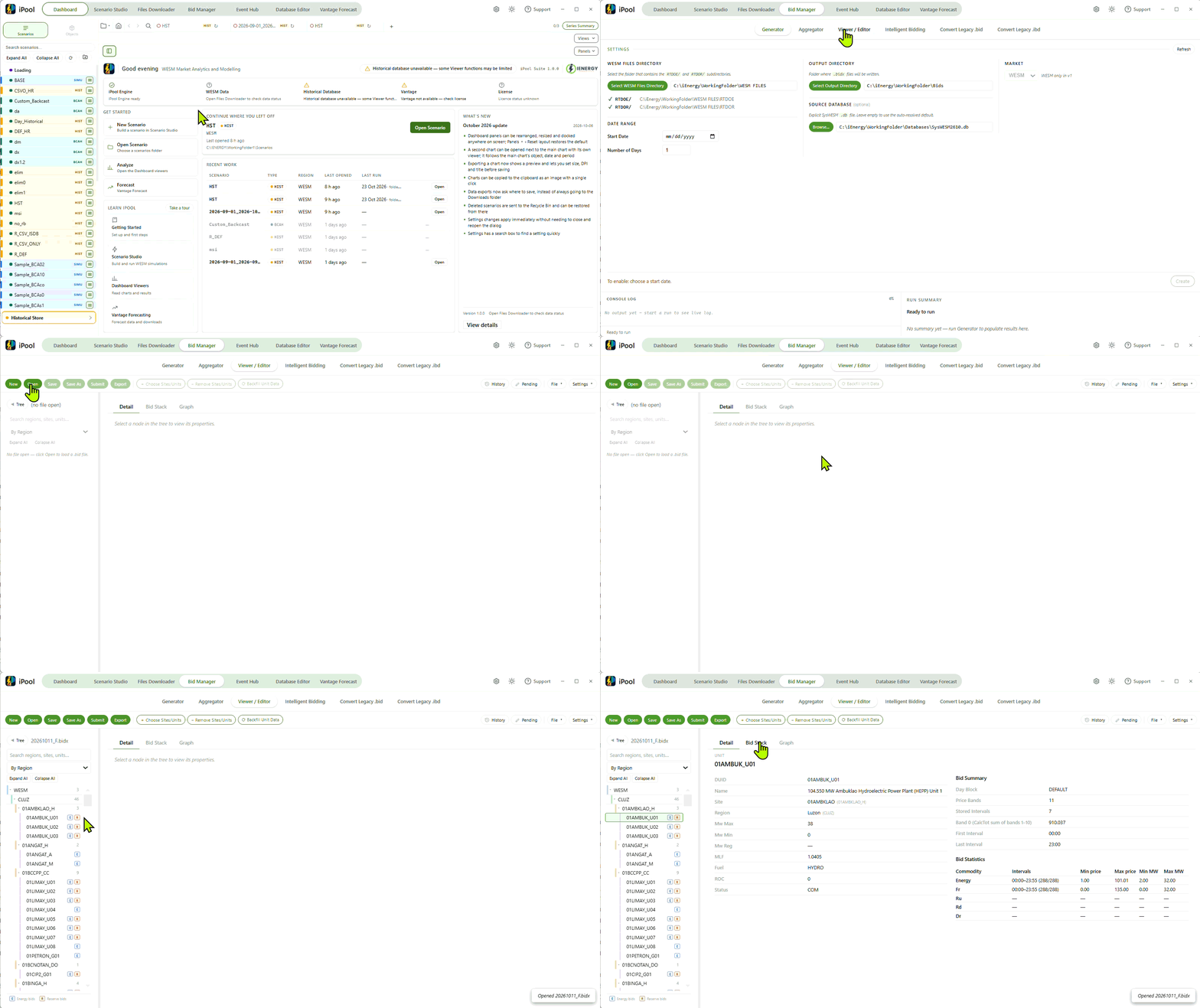
- Go to the Bid Manager tab.
- Click the Viewer / Editor sub-tab.
- Click Choose Sites/Units.
Select Units
Identify your units based on the following naming conventions:
- Supply Unit: Generates power into the grid; operating this unit reduces the overall storage level.
- Naming convention:
UnitName(e.g., 01AAA_BAT_G01)
- Naming convention:
- Demand Unit: Consumes power from the grid to charge; operating this unit increases the overall storage level.
- Naming convention:
UnitName_L(e.g., 01AAA_BAT_G01_L)
- Naming convention:
- From the list, tick the checkbox of the Unit(s) or sites you want to modify.
- Multiple units/sites may be selected for bulk bid price and quantity updates.
- Click Add Selected. The desired units/ sites should appear in the tree view at the left panel.
- Navigate to the Bid Stack tab.
Define Supply and Demand Logic
Bidding requires configuring two different behaviors based on market price thresholds.
3.1 Supply Bids (Discharging)
- Logic: The unit discharges if the Market Price > Bid Price.
- Application: Set these in Bands 1–10 with positive MW values.
- Goal: Capture high-price intervals (e.g., evening peaks).
3.2 Demand Bids (Charging)
Demand bids are mandatory only for Energy Storage Systems (ESS). Other fuel types—including Coal, Geothermal, Biomass, Hydro, Wind and Solar—require Supply bids only.
- Logic: The unit charges if the Market Price < Bid Price.
- Application: These are entered as Demand Bids.
- Goal: To charge during low price and have enough supply during the evening peaks.
Bid Bands
| Band | Parameter | Description for BESS |
|---|---|---|
| Band 1–10 | Price | Ten levels of bid prices. For BESS, these represent the price at which the battery will charge or discharge. Prices must be in ascending order. |
| Band -1 | AvailCap | The total dischargeable capacity (MW) available. |
| Band -2 | RURate | Ramp-up rate (MW/minute). Not applicable for BESS. |
| Band -3 | RDRate | Ramp-down rate (MW/minute). Not applicable for BESS. |
Quantity (MW)
Each unit is configured using either 24 columns (hourly) or 288 columns (5-minute intervals). These columns allow you to define the specific quantity in MW for each bid band across the trading day.
Price
For every time interval (column), you can assign a specific bid price. This enables time-varying bidding strategies, allowing the unit to respond to price fluctuations throughout the day.
Edit Bids
- Modify Hourly Slots: Adjust capacities hourly based on your cycling strategy.
- Efficiency: Use the Paste Right toolbar button to quickly populate the bid quantity or price across the day.
- Speed: Use Bulk Fill Entry to quickly populate the bid quantity or price for different price bands across the day. Learn more about editing functions here.
Save
-
Validate your edits: Click the Update button to validate the cell edits in the Bid Stack grid. Update does not save the file. — it checks the values are valid.
-
Validate Logic (BESS only):
Validation CheckIf you are configuring a Battery Energy Storage System (BESS), verify that your Supply and Demand prices do not overlap. Ensure there is no "circular logic" (e.g., charging and discharging at the same price point).
-
Save to disk: Click Save to overwrite the current
.bidxfile, or Save As to write to a new file. -
Select Target Units: In the Object Tree View (left panel), select the specific units or site for which you customized the bids. This tells the Bid Manager which units to include when saving.
-
Export to CSV (optional): Click Export to export the current bid data as a CSV file for review or external use.
Validation: Ensure your total bid quantity (Supply or Demand) never exceeds the physical capability defined in Band -1.