Run Historical Load
This section covers how to run a Historical Load in iPool Suite — importing and running past market data to recreate actual market conditions for a specific period.
- Required Inputs
- Step-by-step procedure
- Exercise
Historical Load
Historical Load is the process of importing and running past market data to recreate actual market conditions for a specific period. This is used to establish a baseline that can be compared against simulation results, forecasts, or adjusted scenarios.
By running historical data, users can verify whether the system is properly configured and whether the model can reasonably reproduce actual market behavior. It also helps identify database issues, missing inputs, out-of-merit conditions, outages, and other factors that may affect the accuracy of the simulation.
The Historical Load serves as the starting point for further analysis, such as backcasting, calibration, validation, and comparison between historical and simulated prices or dispatch results.
Prerequisites
- RTD Files — Real-time dispatch market data files (RTDOE, RTDOR) downloaded from IEMOP
- Initialized iPool Suite environment — Defaults.csv pointing to correct directories; databases accessible
Step-by-Step Guide
- Phase 1: Download Market Data
- Phase 2: Generate Historical Bids
- Phase 3: Initialize Environment
- Phase 4: Create and Run Scenario
- Phase 5: Review Output
Download Market Data
Using iPool Suite, select all the real-time dispatch data. iPool Suite allows seamless integration of input Real Time Dispatch (RTD) files from IEMOP. iPool Suite includes a downloader for RTD files as well as Week Ahead Projection (WAP) and Day Ahead Projection (DAP). Simply choose which files you need, then set the start and end date to download market data.
Choose the start and end dates for your historical load, and save the files. Wait for the download to complete.
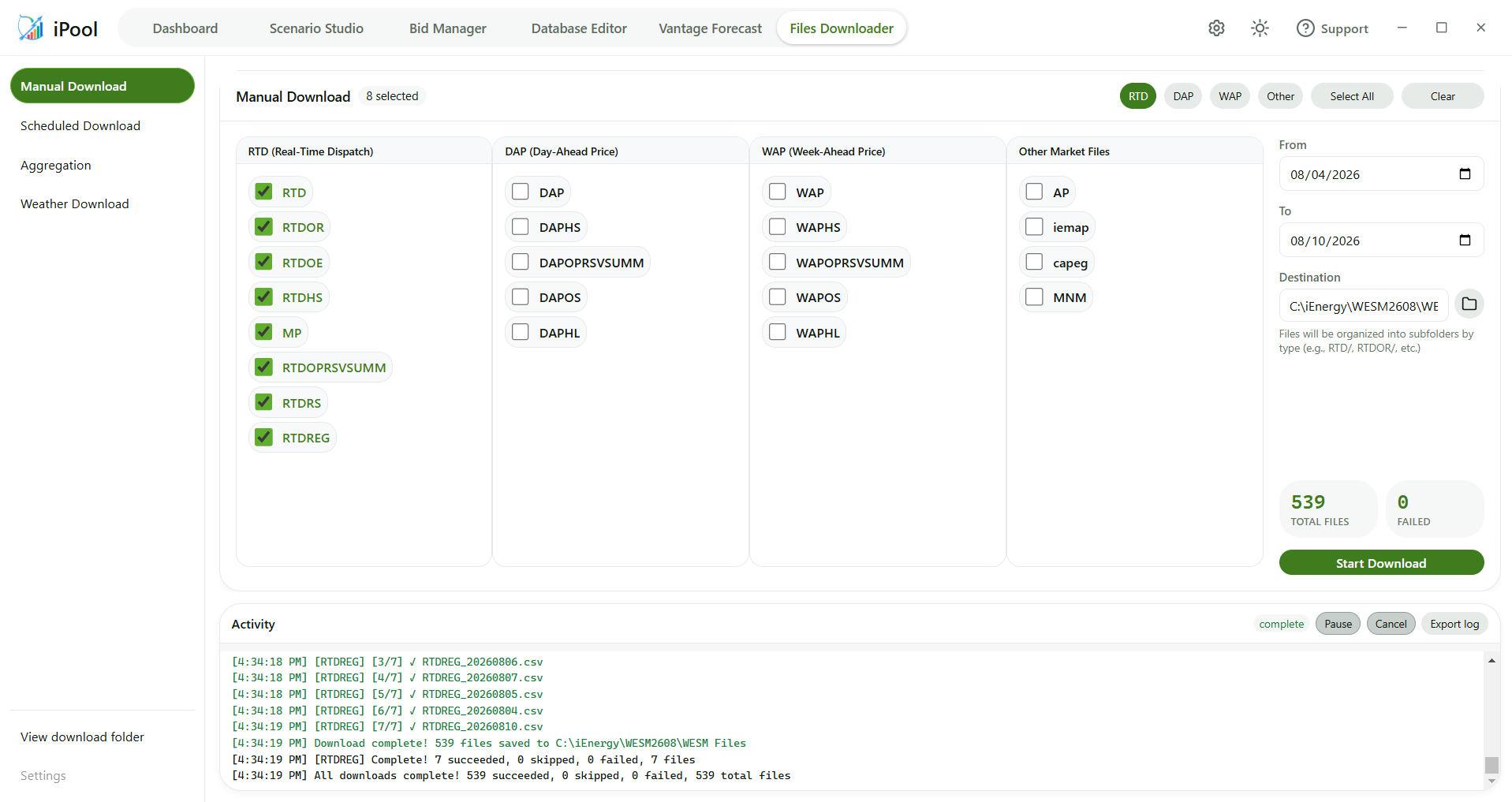
There is a 7-day delay before RTDOE and RTDOR files are uploaded to the IEMOP website. Therefore, the most recent historical load data you can pull will be from 7 days ago.
Generate Historical Bids
Although historical bids are originally downloaded in .csv format (RTDOE and RTDOR),
iPool requires them to be in a specific format for processing. Use the Bid Manager to
generate historical bids into .bidx files, which iPool can read.
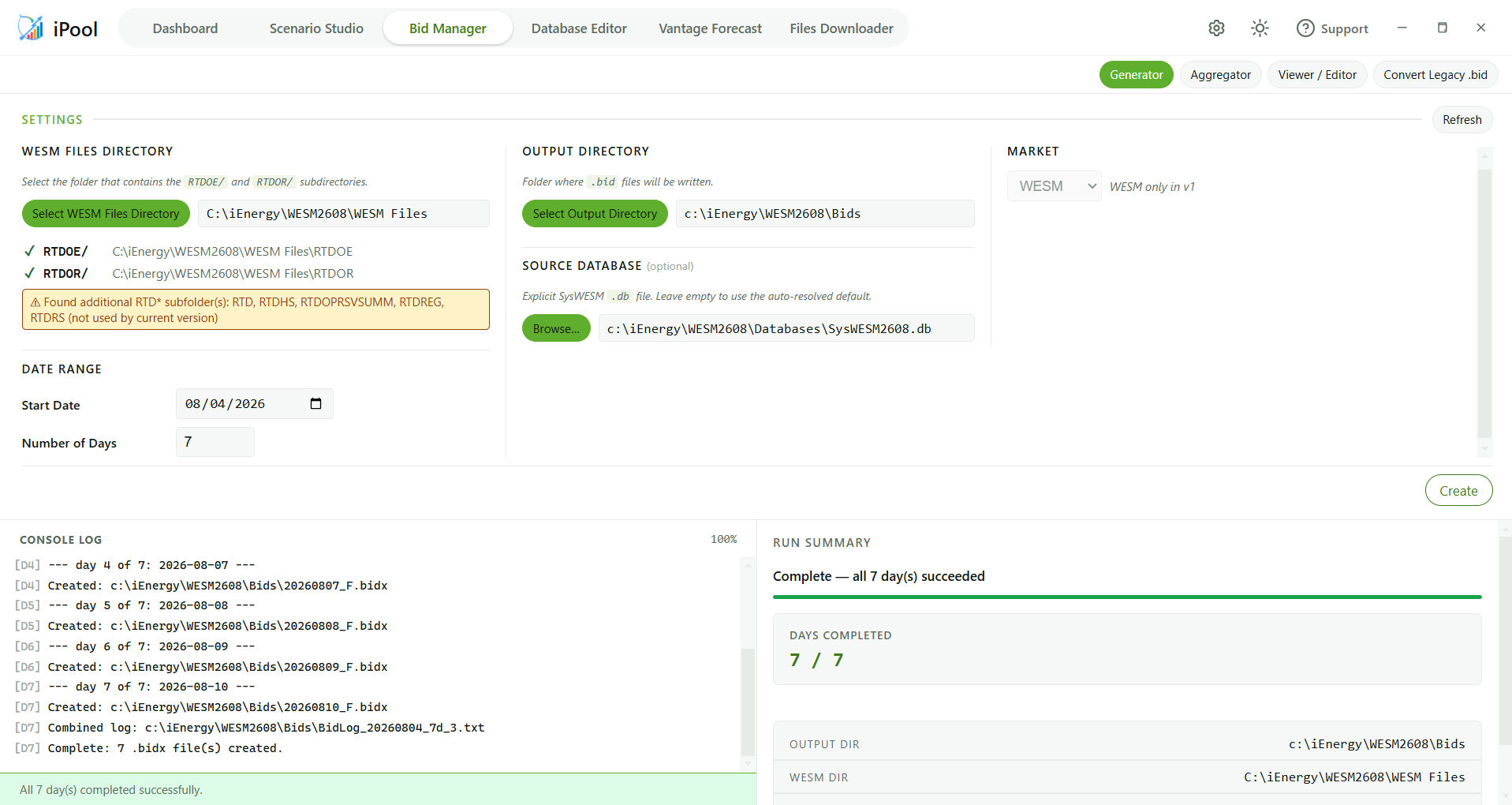
- Open iPool Suite, navigate to Bid Manager, and select the Generator tab. (Bid Manager includes multiple tabs — Generator, Aggregator, Viewer / Editor, Intelligent Bidding, Convert Legacy .bid, and Convert Legacy .ibd. Use Generator for this step.)
- Select the folder where your downloaded WESM files are saved.
- Set the Output Directory and the Source Database (optional) field.
- Enter the start date and the number of days (
ndays) for your historical load, then click Create.
Initialize Environment
To initialize the directory path and databases:
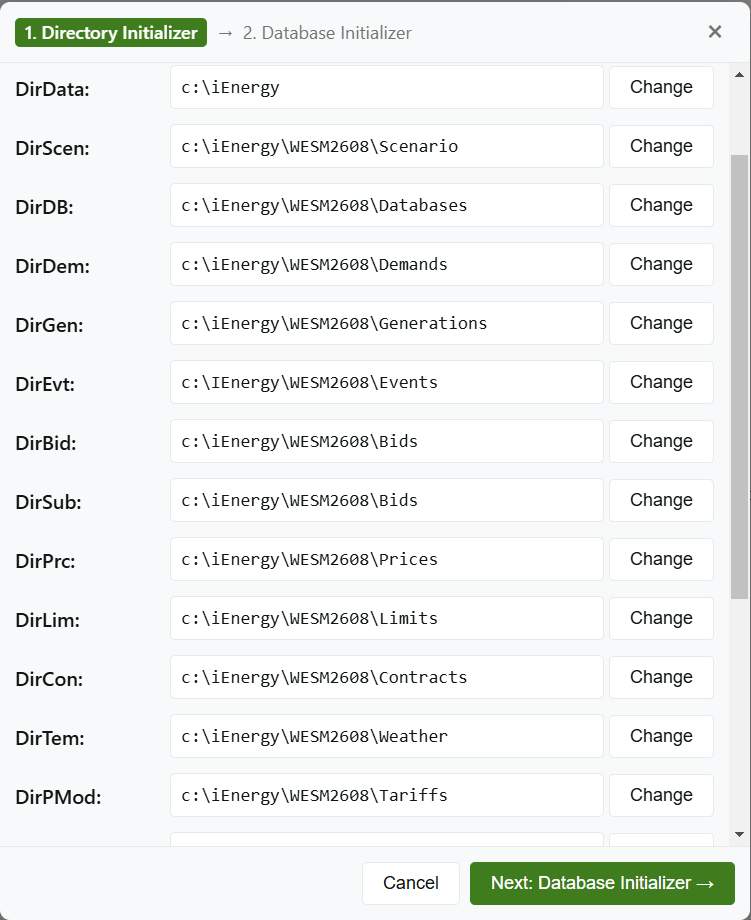
- In iPool Suite, go to Scenario Studio and click Directory Initializer in the header bar. Ensure that the paths point to your set input folders.
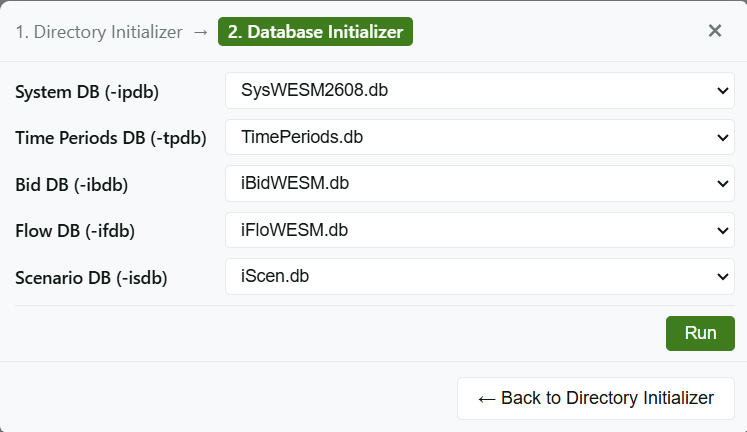
- Set the correct databases and click Run.
Create and Run Scenario
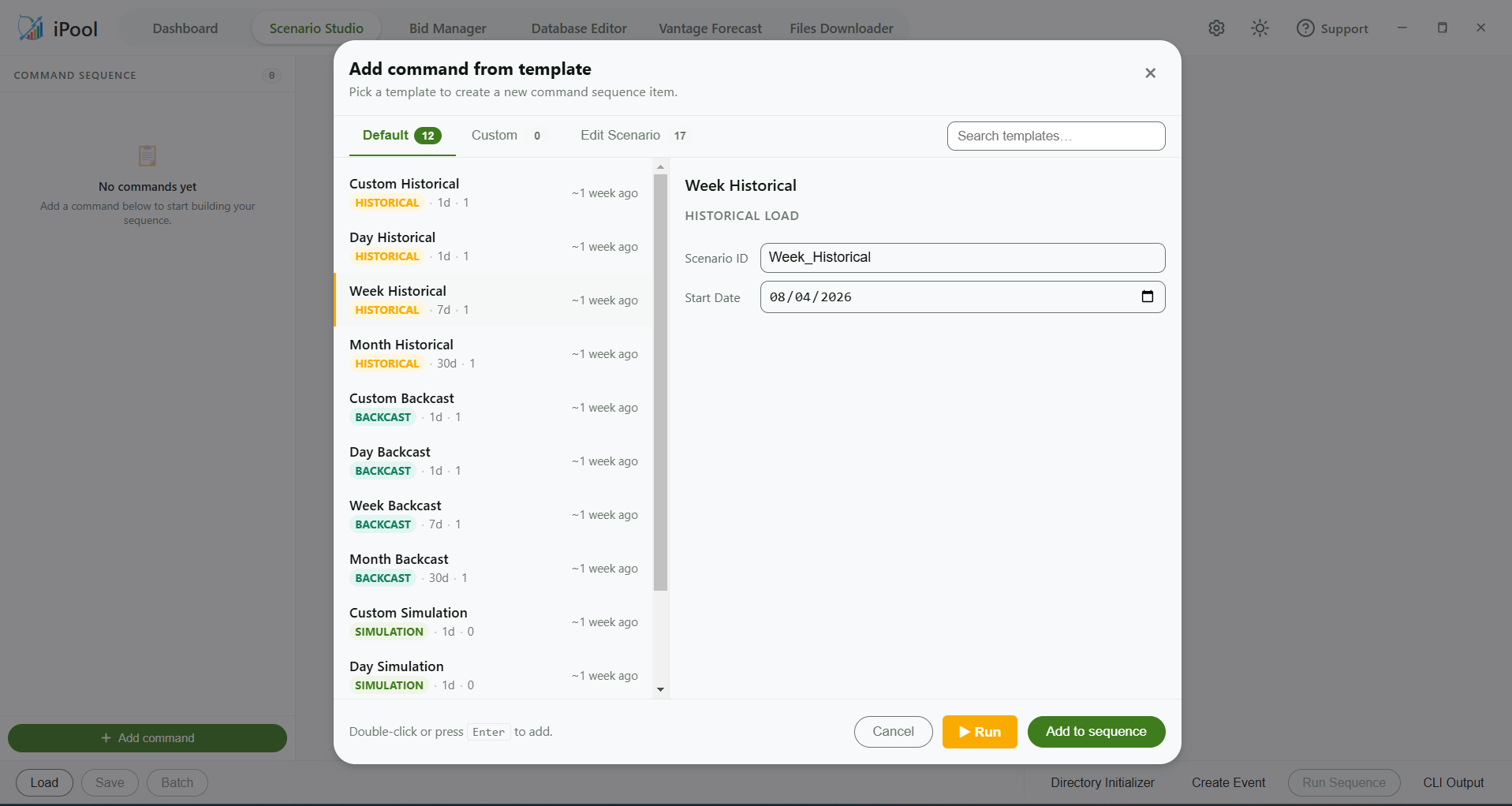
- Click Add command.
- Choose the appropriate template.
- Set the start date and scenario ID, then click ▶ Run to execute the scenario.
Review Output
Go to the Viewer and reload the scenario tree view.
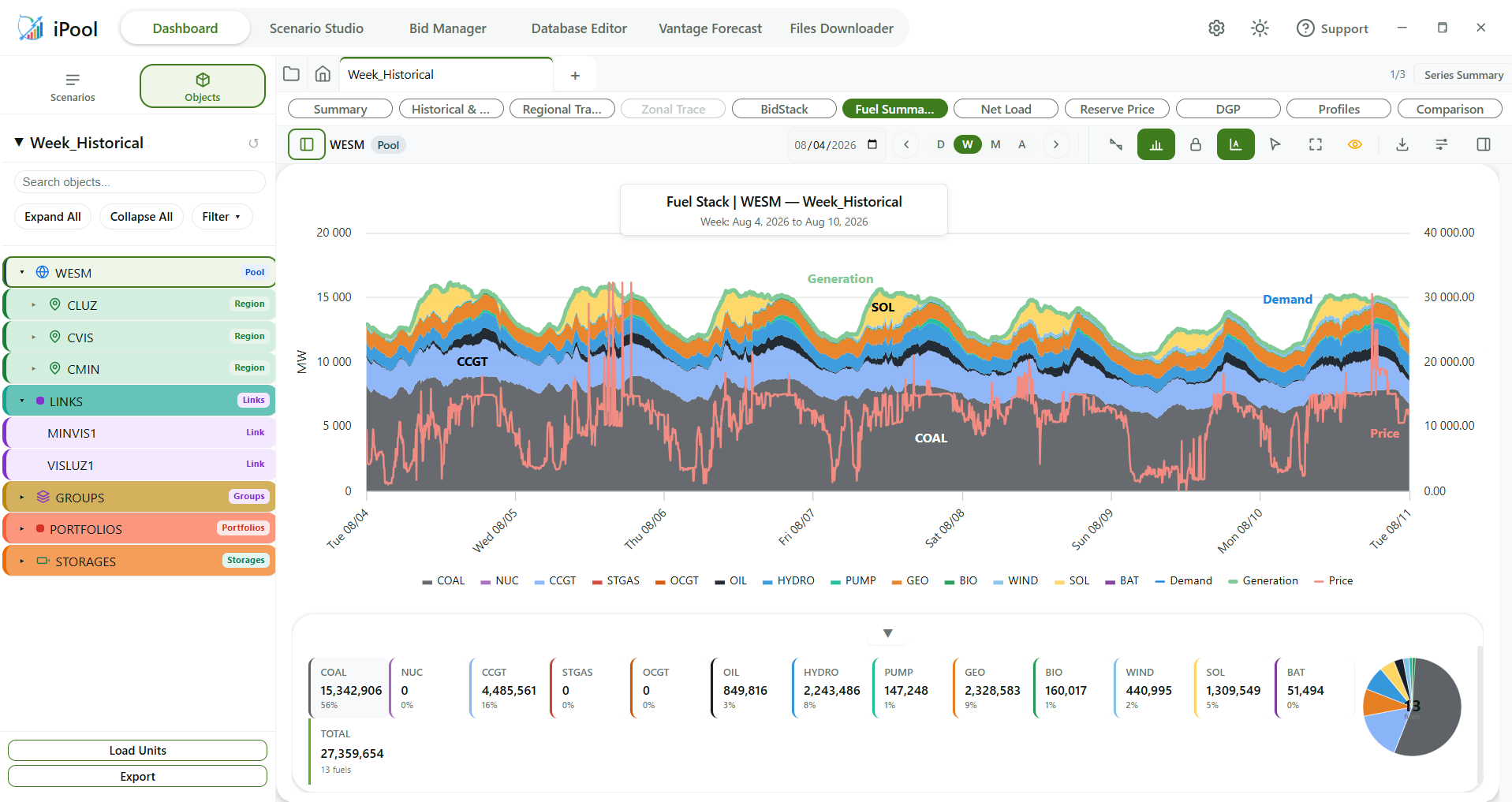
Dashboard has advanced visualizations for different charts, such as fuel stacks, bid stacks, and demand, generation, and price views. These can be viewed per region, site, or unit.
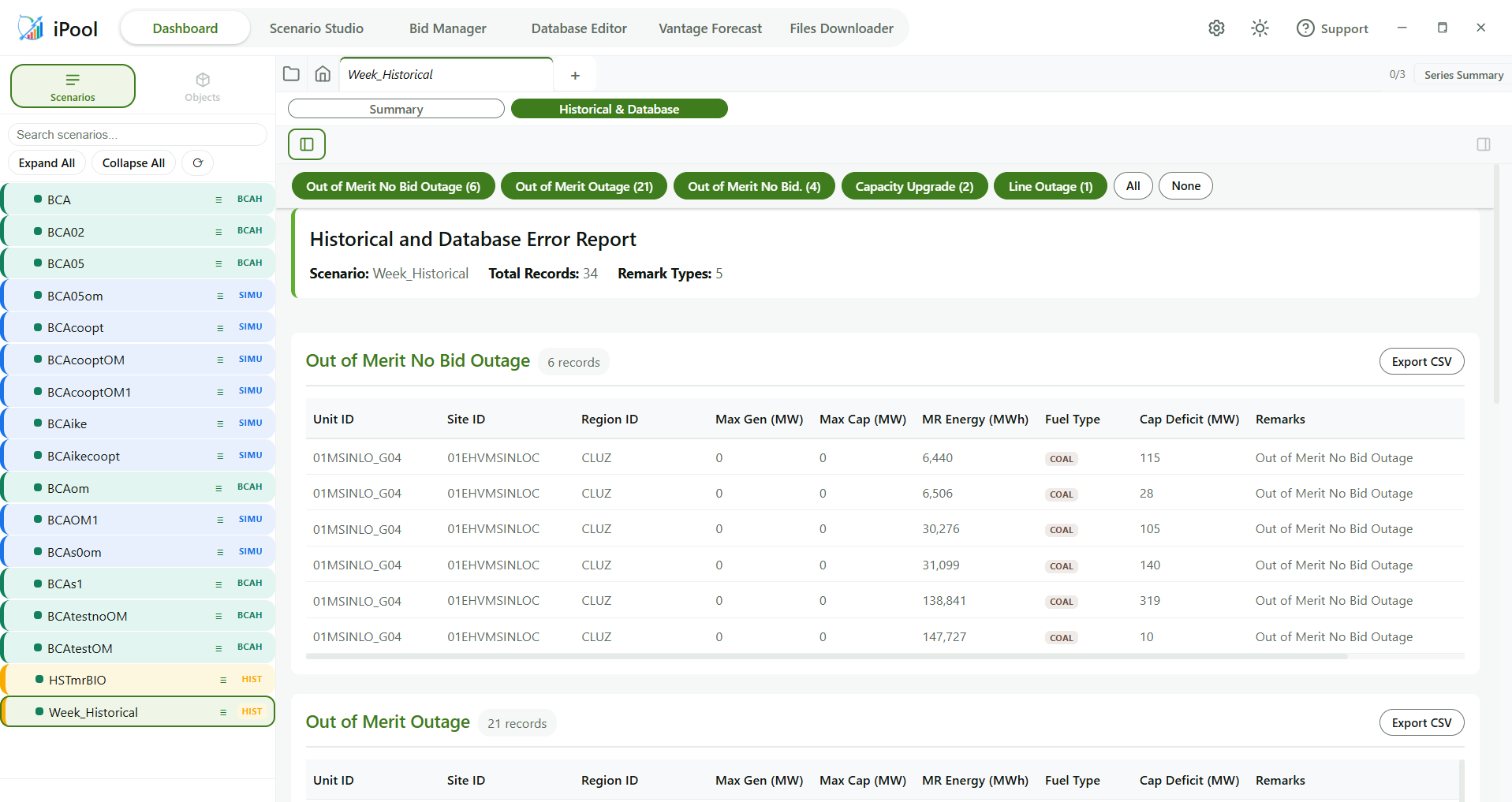
An important thing to check is the Historical and Database Error Report (accessible via the Historical & Database viewer tab). This contains a list of units that:
- Were on outage
- Generated without bids
- Had bids but did not generate
- Are new units not yet included in the database
- Had link flow constraints
Step 6 — Update SysWESM Database (if needed): If the Historical Database Error Report shows capacity upgrades or units missing from the database, update the SysWESM database before proceeding. See Updating the Database for the full step-by-step procedure.
Exercise
Give it a try and do this exercise:
Step 1 of 4
Download WESM Files for the target historical period