Update Database
This section explains how to update the SysWESM database when the
Historical Load Step 6 identifies
errors in the Historical Database Error Report (HistDBErr.csv).
- Required Inputs
- Step-by-step procedure
- Exercise
Updating the SysWESM Database
The Historical Database Error file (HistDBErr.csv) is generated in the scenario folder when
you run a historical load. It provides a summary of system errors including capacity upgrades,
missing units in the database, out-of-merit no bid, out-of-merit outage, and link outage. This
file can be viewed in Dashboard by right-clicking a scenario or by navigating directly to the
historical scenario folder.
An up-to-date system database is crucial for accurate Short-Term Forecasting, as the WESM constantly changes (for example, new units being commissioned or existing unit capacity upgrades).
Prerequisites
- Completed Historical Load run
HistDBErr.csvgenerated in the scenario folder- For the CSV method:
Units.csv,Sites.csv, and/orStorages.csvtemplate files prepared - For the Database Edit Utility method: access to the
SysWESMXXX.dbdatabase
Historical Database Errors
The Historical Database Error Report lists five categories of error:
-
Capacity Upgrade — The capacity of an existing unit has changed. iPool Suite automatically corrects this during the historical load process. To verify, rerun the historical load after the update.
-
missing in db — Units, sites, or storage entries exist in the IEMOP data but are not yet in the SysWESM database. Add these using either the CSV method or the Database Edit Utility (see below).
-
Out-of-Merit No Bid — Units with missing bids. These are included in backcast simulations using the generated bid file
OM_XXX.bidxfrom the historical load process. -
Out-of-Merit Outage — Unit outage events. These are included in backcast simulations using the generated event file
Ev_XXX.csvfrom the historical load process. -
Line Outage — Line outage events. These are also captured in
Ev_XXX.csvfrom the historical load process.
Before proceeding to Backcasting, ensure that the historical load has been completed and that the only remaining Historical Database Errors are Out-of-Merit No Bid, Out-of-Merit Outage, and/or Line Outage. Capacity Upgrade and missing-in-db errors must be resolved first.
Step-by-Step Guide
- Phase 1: Using CSV Files
- Phase 2: Using Database Edit Utility
Prepare CSV Files
Prepare the .csv files using the provided Units.csv, Sites.csv, and Storages.csv
files as base templates.
At minimum, include the necessary details such as IDs, capacity, fuel type, and operations. Make sure that all details are filled out correctly.
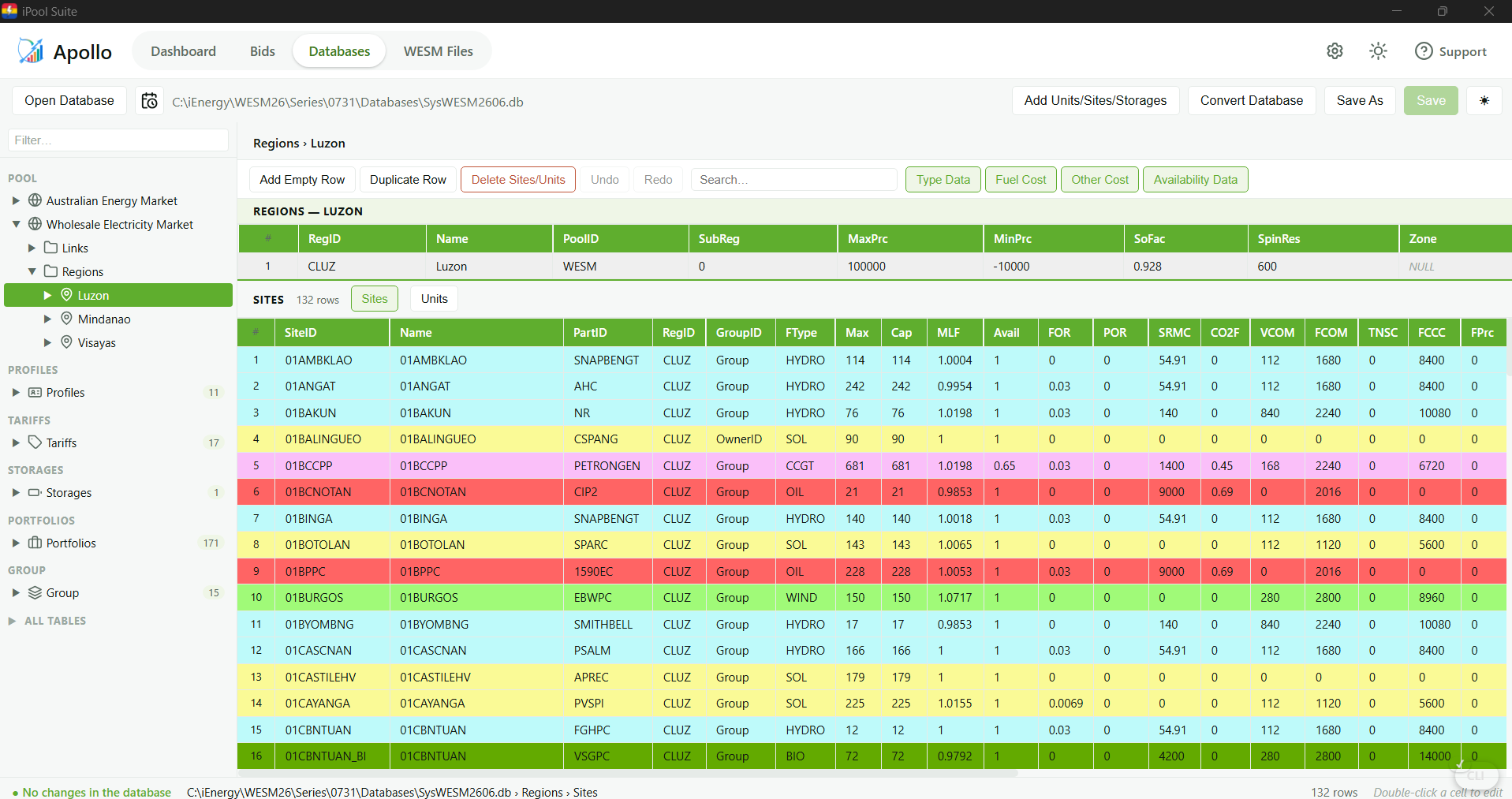
Open the System Database
Click Open Database and select the system database file: SysWESMXXX.db
Open the Update Database Modal
Click Update Database in the top-right toolbar to open the modal. Select the Manual mode.
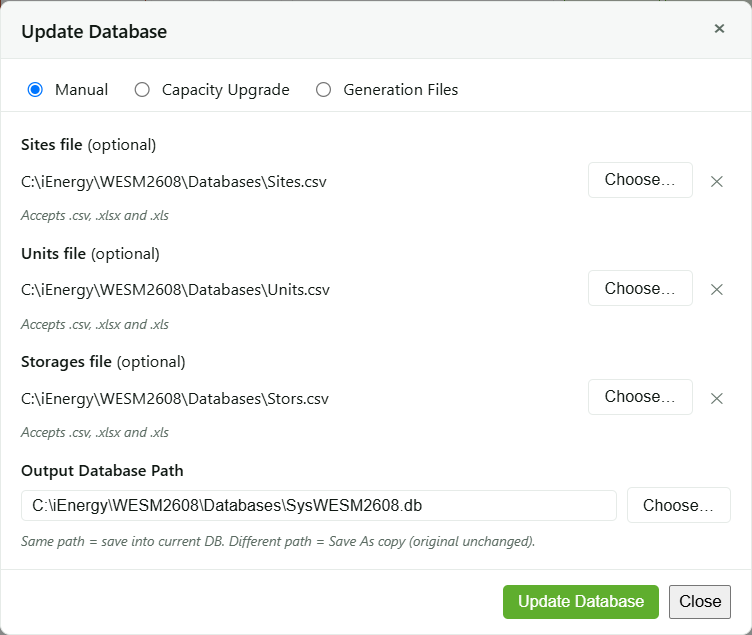
Select Input Files and Update
Select the correct input file(s) and output path(s), then click Update.
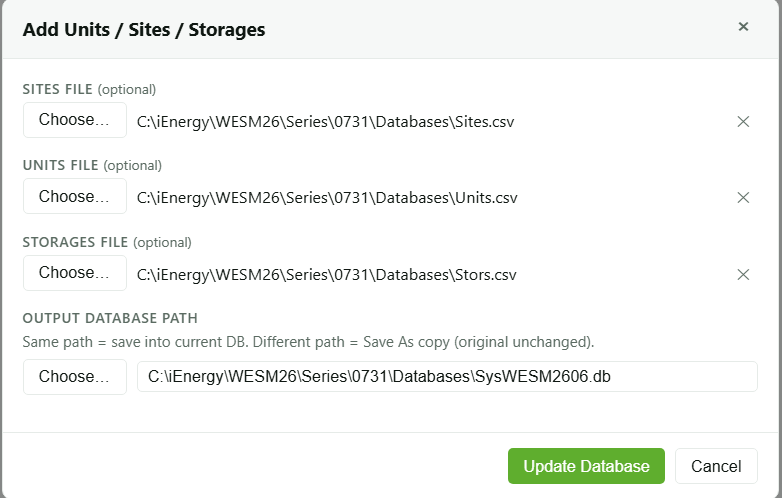
Confirm the Update
A confirmation message will appear. Before proceeding, make sure that the details for
the new units, sites, and/or storages in the .csv files are correct.
Review the Updated Fields
After the update is complete, review the updated fields in the Database Editor to confirm that all details were added correctly.
Open the Database Editor
Open iPool Suite, then go to the Database Editor tab.
Open the System Database
Click Open Database and select the system database file: SysWESMXXX.db
Navigate to the Correct Table
Navigate to the appropriate table, depending on the record you need to add:
- Units
- Sites
- Storage
Find a Similar Existing Record
Look for an existing record that is similar to the new unit, site, or storage entry you want to create (for example, matching fuel type or site location).
Duplicate the Record
Select the similar record and click Duplicate Row.
Update the Copied Record
Update the copied record with the correct details for the new unit, site, or storage entry.
Save
Click Save after making the changes.
A unit must be assigned under a site. If the new unit belongs to a site that does not yet exist in the database, create the new site first before adding the unit.
Primary CSV Files
See each tab to learn more about the primary CSV files used when adding entries via the CSV method.
- Storages
- Sites
- Units
Storages.csv
The Storages.csv file defines the physical limits of the energy reservoir. It sets the maximum and minimum energy capacity (MWh) and the PcBeg (Beginning %), which determines the initial state of charge at the start of the simulation.
For Battery Energy Storage Systems (BESS), PcBeg is typically set to 50% to provide balanced charging and discharging flexibility.
The table below describes the parameters for storage assets (e.g., STO_CLUZ) as defined in the Storages.csv data structure.
| Item | Description | Example Value |
|---|---|---|
| StorageID | Unique identifier of the storage. | STO_CLUZ (user-defined) |
| Region | Region associated with the storage. | CLUZ, CVIS, or CMIN |
| StorageType | Classification of the storage. | BAT, HYDRO, GAS |
| InFlow | Rate of inflow into the storage (for hydro or similar technologies). | 0 (for BESS) |
| Max Cap (MWh) | Maximum energy capacity of the storage (MWh). | 4000 (user-defined) |
| Min Cap (MWh) | Minimum allowable energy level (MWh). | 1 (user-defined) |
| Begin Level (%) | Initial state of charge at the start of the simulation. | 50 (user-defined) |
| MoF0 – MoF12 | Monthly inflow values (if applicable). | 0 (for BESS) |
| Upstream StorageID | Upstream storage ID (if applicable). | (No input required for BESS) |
| Upstream Factor | Upstream factor. | 1 |
| Inflow Time Hrs | Inflow time (hours). | 0 (for BESS) |
Sites.csv
The Sites.csv file manages the relationship between units and the broader system infrastructure. It provides site-level data and links units to the associated storage reservoir.
A critical parameter in this file is Storage Efficiency, which follows a sign-convention logic:
- Negative values represent the supply (discharge) phase.
- Positive values represent the demand (charging) phase.
| Item | Description | Example Value |
|---|---|---|
| SiteID | Unique identifier of the site. | 01AAA_BAT (user-defined) |
| Name | Display name of the site. | 01AAA_BAT (user-defined) |
| OwnerID | Participant or owner identifier. | Owner |
| RegionID | Region associated with the site. | CLUZ, CVIS, or CMIN |
| GroupID | Group classification of the site. | Group |
| FuelType | Fuel or technology type (e.g., Battery). | BAT |
| Max MW | Maximum physical capacity (MW). | 1000 (user-defined) |
| Cap | Operating or registered capacity (MW). | 1000 (user-defined) |
| MLF | Marginal Loss Factor. | 1 |
| Nominal Availability | Expected percentage of time the site is available. | 100.00% |
| FOR | Forced Outage Rate. | 0.00% |
| POR | Planned Outage Rate. | 0.00% |
| SRMC | Short-Run Marginal Cost. | 0 |
| CO2e Factor | Carbon dioxide emissions factor. | 0 (user-defined) |
| Var O&M P/MWh | Variable operation and maintenance cost (Pesos per MWh). | 0 (user-defined) |
| Fix O&M P/kW/yr | Fixed operation and maintenance cost (Pesos per kW per year). | 492 (user-defined) |
| Network Charge P/kW/yr | Network or connection charges (Pesos per kW per year). | 0 |
| Annual CapCharge P/kW/yr | Annualized capacity charge (Pesos per kW per year). | 2000 |
| Fuel Price P/tonne | Fuel cost (Pesos per tonne). Zero for battery or solar. | 0 |
| Storage Factor | Storage factor of BESS. Negative value for discharge (supply unit); positive value for charge (load unit). | -1.08 for 92% charging efficiency, 0.92 for 92% discharging efficiency. |
| VRE Conversion High/Mid/Low | Multiple energy conversion factors (High, Medium, Low). | 1 / 1 / 1 |
| VRE LDC Elbow High/Low | Sets the elbow point for energy conversion | 0 |
| Target Cap Factor | Target capacity factor. | 0.15 |
| StorageID | Link to the specific storage in Storages.csv. | STO_CLUZ_BAT |
| bKwLoad | Sets power to either kW or MW | FALSE |
| bVRE | Sets the site as Must Dispatch. | FALSE |
| bUse VRE Factor | Enables the use of energy conversion factors. | FALSE |
Units.csv
The Units.csv file defines the core characteristics of generation or storage units. It records each unit's unique identifier, maximum capacity (MW), and operational attributes such as fast-start capability and dispatch status. It also includes a Supply boolean field that determines whether the unit is active in the dispatch model.
| Item | Description | Example Value |
|---|---|---|
| Unit ID | Unique identifier of the unit. | 01AAA_BAT_G01 (user-defined) |
| Name | Display name of the unit. | 01AAA_BAT (user-defined) |
| SiteID | Links the unit to a specific site in Sites.csv. | 01AAA_BAT |
| OwnerID | Owner associated with the unit. | Owner |
| GroupID | Group classification of the unit. | Group |
| MwMax | Maximum capacity in MW. | 500 (Check CAPEG) |
| MwMin | Minimum operating capacity in MW. | 0 |
| MLF | Marginal Loss Factor. | 0.99 |
| Availability (%) | Expected percentage of time the unit is available. | 100.00% |
| Auxiliary Loss (%) | Internal power consumption of auxiliary equipment (e.g., pumps, fans). | 0% |
| SMRC at 100/80/60/40% | Short-Run Marginal Cost at specified loading levels. | 0 |
| Ramp Rate MW/min | Ramp-up and ramp-down limits in MW per minute. | 0 |
| Default Reserve Priority | Reserve classification priority. | dr = 1, ru & rd = 2, fr = 3 |
| bSupply | TRUE if the unit supplies energy; FALSE otherwise. | TRUE or FALSE |
| bFast Starting | Indicates if the unit has fast-start capability. | TRUE or FALSE |
| Dispatchable | Determines whether the unit can be dispatched. | TRUE or FALSE |
| Start-Up Cost after 5h/20h/50hrs | Cost to start the unit after being offline for specified durations. | 0 (for BESS) |
| Maint Profile ID | Maintenance profile used to calculate planned outage schedules. | (No input required) |
| Year Installed | Year the unit was installed. | Year |
| Maint Cycle Years | Number of maintenance cycles per year. | 1 |
| Weekly Energy Limit | Weekly energy limit in MWh. | 0 |
| Starting Hours | Required downtime (in hours) before restarting after shutdown. | 0 |
| Maximum Hrs Online | Maximum consecutive operating hours (0 = no limit). | 0 |
| Minimum Hrs Online | Minimum consecutive operating hours (0 = no limit). | 0 |
| Minimum Hrs Offline | Minimum consecutive downtime (0 = no limit). | 0 |
| Max Reserve MW | Maximum reserve capacity in MW. | 0 |
Exercise
Give it a try and do this exercise:
Step 1 of 3
Review the Historical Database Error Report
iPool Suite Database Editor — Update Database
The Update Database modal applies bulk structural updates to the currently open database. Select an update mode, prepare your input files, and click Update to write changes directly to the database.
Opening Update Database
Click Update Database in the top-right area of the toolbar. The button is disabled when no database is open.
Update Modes
Clicking Update writes changes directly to the database — this cannot be undone via the main editor's Undo. When saving to the current file, any unsaved edits in the main editor are discarded. Save your work before clicking Update.
A Save Log button appears in the modal footer after an update has been attempted for the active mode. Clicking it opens a native save-file picker filtered to .txt, with a prefilled filename, so you can save the update log to disk. The button is not shown before the first update attempt, and disappears when you switch modes.
Manual
Manual mode adds new Units, Sites, and Storages to the database using prepared CSV template files.
- Available on: Desktop and Web
Select up to three input files (.csv, .xlsx, or .xls):
- Units.csv — adds or updates unit records. Optional; leave blank to skip.
- Sites.csv — adds or updates site records. Optional; leave blank to skip.
- Storages.csv — adds or updates storage records. Optional; leave blank to skip.
The modal prompts for an output path:
- Same path as the open database — saves into the current database file; any unsaved edits in the main editor are discarded.
- A different path — saves a copy (Save As); any unsaved edits in the main editor are saved into the copy before the update runs.
Capacity Upgrade
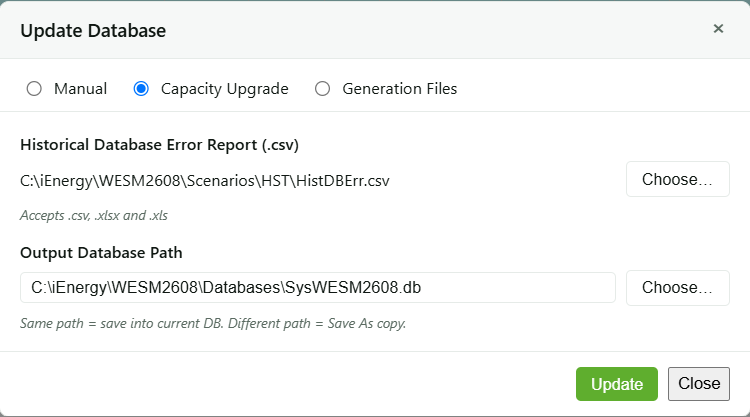
Capacity Upgrade reads a Historical Database Error Report and updates Units.MwMax for each unit whose Remarks column equals "capacity upgrade". Only one column in one table is changed — no rows are inserted.
The loaded database must have Sites, Units, and Storages tables (the USS schema). If the schema check fails, an error banner appears and the update is refused.
Select a Historical Database Error Report file (.csv, .xlsx, or .xls) using the Historical Database Error Report (.csv) picker. Your file must include the following nine columns (case-sensitive; column order does not matter):
- UnitID — matched against Units.DUID to identify which row to update
- MaxGen — new value written to Units.MwMax; must be a positive number
- Remarks — only rows where this equals "capacity upgrade" are processed; all others are skipped
- Required for file identification but not used by the update logic: SiteID, RegionID, MaxCap, MREnergy, FuelType, CapDeficit
Extra columns are tolerated. If any required column is missing, the update is refused with a red error banner naming the missing columns. If characters appear garbled, confirm the file is saved in UTF-8 encoding.
The modal prompts for an output path:
- Same path as the open database — saves into the current database file; any unsaved edits in the main editor are discarded.
- A different path — saves a copy (Save As); any unsaved edits in the main editor are saved into the copy before the update runs.
After clicking Update:
- Green block: N unit(s) upgraded in Units with a list of DUID: old → new MW values.
- Neutral block: No capacity upgrade rows were found — valid file, but no rows matched "capacity upgrade" in Remarks; Units was not changed.
- Orange warning block: N CSV row(s) had no matching unit — DUIDs in the file that did not match any unit in the database.
- Warning list: row skipped — for non-numeric or non-positive MaxGen values.
- Red error banner: missing columns, wrong file type, or USS schema not found.
Generation Files
Generation Files reconciles a database against two external data sources — an MNM GenList file and one or more CAPEG files — performing up to ten categories of structural update in one pass.
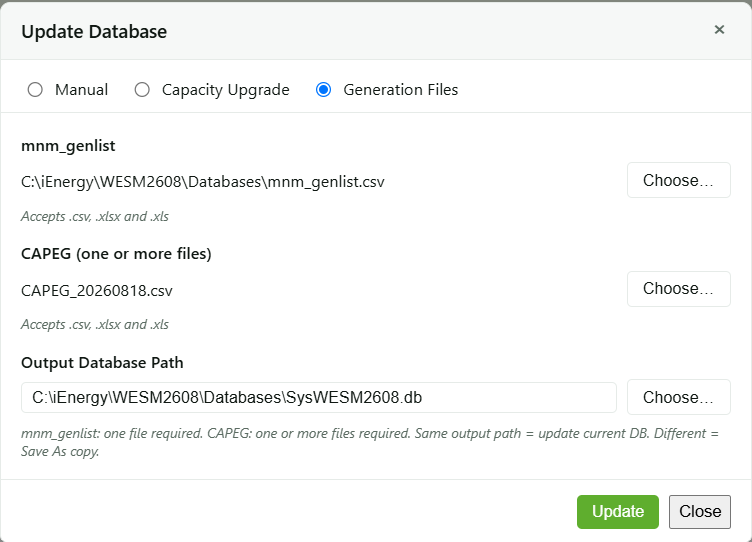
Generation Files requires a regional database — the Regions table must contain exactly CLUZ, CVIS, and CMIN as RegIDs. If this precondition is not met, the modal replaces the mode option with a disabled note and the mode cannot be selected.
Running Generation Files more than once on the same database with the same input files will still produce changes on subsequent runs. Measured results on a real database:
- Run 1: 1,271 changes
- Run 2: 80 changes
- Run 3: 3 changes
Do not re-run Generation Files casually. Each run may modify the database.
Two checkboxes control optional behaviour during the update. Both are checked by default:
- Auto-Rename SiteID — renames existing Sites to add a canonical fuel-type suffix (for example,
01ABCbecomes01ABC_Sfor a solar site). Uncheck to leave SiteIDs unchanged. - Create Twins (BATT and PUMP) — creates and syncs load-twin Sites and Units for battery and pumped-hydro sites. Uncheck to suppress all twin creation and sync activity.
Select an MNM GenList file and one or more CAPEG files (.csv, .xlsx, or .xls each). Both files must end with an EOF row — a row where the first column reads EOF and all remaining columns are empty.
MNM GenList required columns (case-sensitive): RESOURCE NAME, DESCRIPTION, REGION NAME, STATION NAME, and TRADING PARTICIPANT. Region names in the MNM GenList file use the full names LUZON, VISAYAS, and MINDANAO; these are automatically mapped to the database's region codes CLUZ, CVIS, and CMIN. If characters appear garbled, confirm the file is saved in Windows-1252 (CP1252) encoding — MNM GenList files are read with that encoding.
CAPEG required columns (case-sensitive): TP_NAME, RESOURCE_NAME, and MAXIMUM_CAPACITY. TRADING_DAY_ID is optional — when multiple CAPEG files are provided, the row with the largest TRADING_DAY_ID wins for each resource name (ISO date format means lexicographic order equals chronological order). CAPEG files are read as latin1; files that contain only ASCII characters will not be affected.
In a single pass, Generation Files may perform any of the following:
- Refresh Units.Name for units whose description changed
- Raise Units.MwMax when the CAPEG MAXIMUM_CAPACITY exceeds the current value
- Insert new Units (cloned from a same-fuel-type donor row, inheriting MLF and MTYR)
- Insert new Sites (if STATION NAME does not already exist as a SiteID)
- Insert missing Portfolio (Parts) entries from TRADING PARTICIPANT
- Recompute Sites.Max and Sites.Cap for all sites with at least one child unit
- Rename Sites to add a fuel-type suffix (for example, 01LAMAO becomes 01LAMAO_C for coal) — controlled by the Auto-Rename SiteID checkbox
- Create load-twin Sites for battery (_B/_BL) and pump (_P/_PL) fuel types — controlled by the Create Twins (BATT and PUMP) checkbox
- Sync pre-existing load-twin Sites (gen-wins: overwrites load twin with values from the gen site; reported as a warning) — controlled by the Create Twins (BATT and PUMP) checkbox
- Normalize malformed twin DUIDs — controlled by the Create Twins (BATT and PUMP) checkbox
When a unit's fuel type cannot be identified, sites are currently left unsuffixed — this behaviour is pending final confirmation and may change in a future release.
The modal prompts for an output path:
- Same path as the open database — saves into the current database file; any unsaved edits in the main editor are discarded.
- A different path — saves a copy (Save As); any unsaved edits in the main editor are saved into the copy before the update runs.
RTD Files
RTD Files mode updates Units.MLF (Marginal Loss Factor) from hourly RTD files, then recomputes Sites.MLF for all affected sites.
- Available on: Desktop and Web. No platform restriction exists for this mode.
- No schema gate: Always enabled; does not require the USS schema or a regional database.
Inputs
Enter a Start Date and End Date (MM-DD-YYYY format) using the date fields or calendar picker buttons. RTD files are read from the fixed DirHst\RTD folder — there is no user folder picker.
Missing hours are reported as warnings; partial data is accepted.
Result messages
After the update runs, one of the following result messages appears:
- "N units updated (Units.MLF)" — with a per-unit list of old → new MLF values.
- "No matching units were found in the RTD files. Units.MLF was not changed."
- "All matched units are already up to date. No changes were needed."
- "N sites recomputed (Sites.MLF)"
Save Log button
A Save Log button appears in the modal footer after an update attempt for the active mode. Clicking it opens a native save-file picker filtered to .txt, with a prefilled filename. The button is not shown before the first attempt, disappears when you switch to a mode where no attempt has been made, and reappears when you return to a mode where you previously ran an update.
Command-Line Interface (CLI)
The iPoolSuite.exe CLI supports update-database operations via the -updatedb flag. A log file is written beside the database as <name>.cli.log after each run.
Mode 1 — Add Sites/Units/Storages (Manual)
iPoolSuite.exe -updatedb \
  [-SitesFile <sites.csv>] \
  [-UnitsFile <units.csv>] \
  [-StorsFile <stors.csv>] \
  -o <database.db> \
  -s
-SitesFile <sites.csv>,-UnitsFile <units.csv>,-StorsFile <stors.csv>: paths to CSV/XLSX input files. Each is optional; omit any file to skip that table.-o <database.db>: the output database to write.-s: commit changes. Without-s, the operation is a dry run and no changes are written.
Mode 2 — Capacity Upgrade
iPoolSuite.exe -updatedb \
  -histDBErr <histdberr.csv> \
  -o <database.db> \
  -s
-histDBErr <file>: path to the Historical Database Error Report CSV.-o <database.db>: the output database.-s: commit changes.
Mode 3 — Generation Files
iPoolSuite.exe -updatedb \
  -genlist <genlist.csv> \
  -capeg <capeg.csv> \
  [-capeg <capeg2.csv> ...] \
  -o <database.db> \
  -s \
  [--no-auto-rename-siteid] \
  [--no-create-twin-battery]
-genlist <genlist.csv>: MNM GenList file.-capeg <capeg.csv>: CAPEG file. Repeatable — pass multiple-capegflags for multiple files.-o <database.db>: the output database.-s: commit changes.--no-auto-rename-siteid: suppresses fuel-type suffix renaming of existing Sites.--no-create-twin-battery: suppresses battery and pumped-hydro twin creation and sync.