Edit Database
The Database Editor uses staged editing: changes accumulate in memory and are only written to the database file when you click Save. Until then, the file on disk is not modified.
Editing Cells
- Double-click a cell to edit it. The cell becomes an editable input.
- Single-click selects the row without entering edit mode.
- Edited rows are highlighted with an amber background.
- The status bar changes to ● Unsaved changes and the Save button enables.
Adding Rows
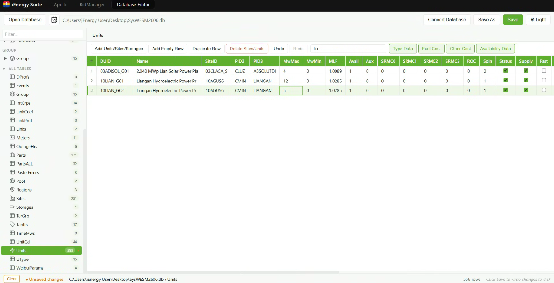
Add Empty Row
- Click Add Empty Row in the panel toolbar.
- A row must be selected first. If no row is selected, a dialog appears: "Select a cell first. This will add an empty row below the selected cell." (OK button).
- A null-filled row is inserted below the selected row.
Duplicate Row
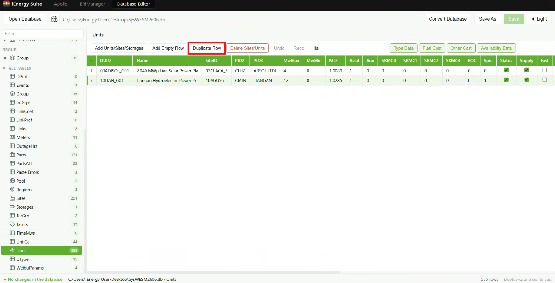
- Click Duplicate Row in the panel toolbar.
- A row must be selected. A confirmation dialog appears: "You have selected a cell/cells. Are you sure you want to duplicate the row containing the selected cell?" (Duplicate button).
- The row is copied below the selected row.
Deleting Rows
- Click Delete Row (or Delete Sites/Units when viewing Sites or Units) in the panel toolbar.
- A row must be selected. A confirmation dialog appears: "Delete this row? The row will be removed from view immediately and deleted from the database when you save." (Delete button).
- The row is removed from view immediately. It is deleted from the database file on Save.
Undo and Redo
- Undo button: undoes the last change. Disabled when no undo history.
- Redo button: redoes the last undone change. Disabled when no redo stack.
- Every cell edit, row add, row delete, and row duplicate is recorded in undo history.
- Group bMustRun cascade: when
bMustRunis changed on a Group row, all child Sites in that group update automatically. The entire cascade is bundled as a single undo action. - Undo history is cleared when the database is opened, closed, or saved. It does not persist between sessions.
Saving Changes
The database file is not modified until you click Save.
- Click Save in the top toolbar to write all pending changes atomically to the file.
- The button shows Saving… while writing.
- On success: the amber highlights clear and the status bar shows ● All changes saved.
- On type-validation failure: save is blocked (see Validation below).
Saving a copy:
- Save As (desktop only): opens a native dialog to save a copy of the database with all pending changes applied.
- Download (web only): downloads the current database file from the server.
Discarding Changes
- Click Clear in the status bar (only visible when there are unsaved changes).
- A confirmation dialog appears: "This will discard all unsaved changes and restore the database to the last saved state. Are you sure you want to continue?" (Discard Changes button).
- All pending changes are discarded and the grid reloads from the database file.
Opening a new database or closing the current database also triggers an unsaved-changes guard.
Validation
Type Validation
When you click Save, each pending change is validated against the column's expected data type. If any cell has an invalid value, save is blocked and a dialog appears:
"Cannot save: N cell(s) have invalid values."
The dialog lists up to 10 invalid cells with their expected types (for example, "SiteID expects text", "MwMax expects integer"). Fix the highlighted cells and click Save again.
Foreign-Key Validation
Columns that reference another table (foreign-key columns) are validated against the set of valid values from the referenced table. Cells with invalid foreign-key values are highlighted in the grid.
Duplicate Detection
When a table is selected, columns whose names end in id (case-insensitive) are checked for duplicate values. Rows with duplicate key values are highlighted.
If you save with duplicates present, a confirmation dialog asks you to confirm before writing: "Duplicate values detected" (exact wording may vary).